It's simple, but I've summarized it with the purpose of trying it out in advance.
You can participate in the meeting from the URL (containing the conference room number) sent by our staff.
The following explains the screen using Windows + Chrome. You can do roughly the same thing in other environments (connecting with a browser), but the positional relationship of menus and buttons is different.
You can connect using a browser such as chrome, firefox, edge, safari, etc. on systems such as windows, macintosh, chrome os, ubuntu, linux, iPhone/iOS, android. Chrome is recommended if you can use multiple browsers. Also, it is recommended to use an earphone microphone or headset rather than the device's microphone or speaker.(This is because there is a concern about howling caused by the microphone picking up the sound of the speaker. Also, depending on the location, it may be effective in the sense of not disturbing the surroundings. I think that a cheap earphone microphone such as those sold at 100 yen stores can also be used.)。
For iPhone/Android, it is also possible to connect by installing/launching the jitsi app, but the operations in that case are unique to each app.When you click the URL on your smartphone, the menu will prompt you to install such an app. However, for one or two meetings, I think connecting via a browser is sufficient without installing an app. There should be a button for a browser-only connection at the bottom of the menu.
1. Things you can do in advance (The following operations do not require any guidance from us) Check the camera, microphone, and speakers
Our web conference URLBy clicking , a screen like the one below will be displayed.
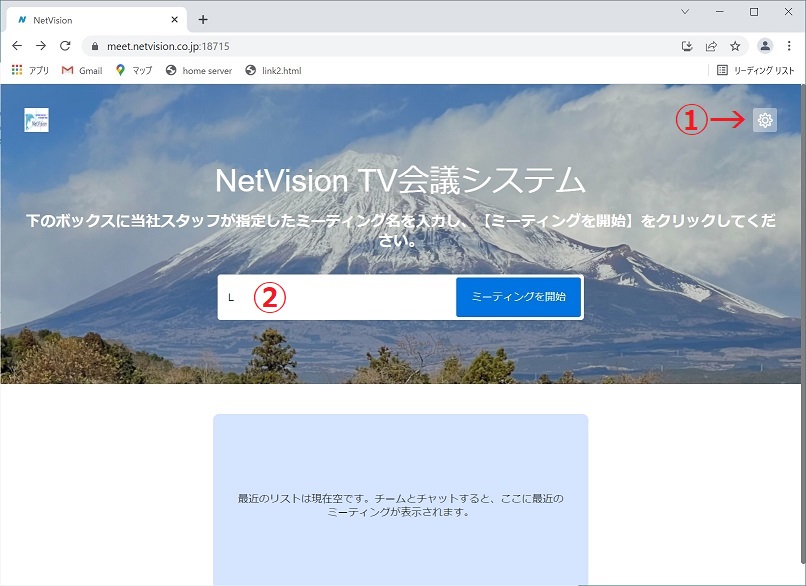
[Title screen]
①By clicking the gear icon, the following menu will be displayed.
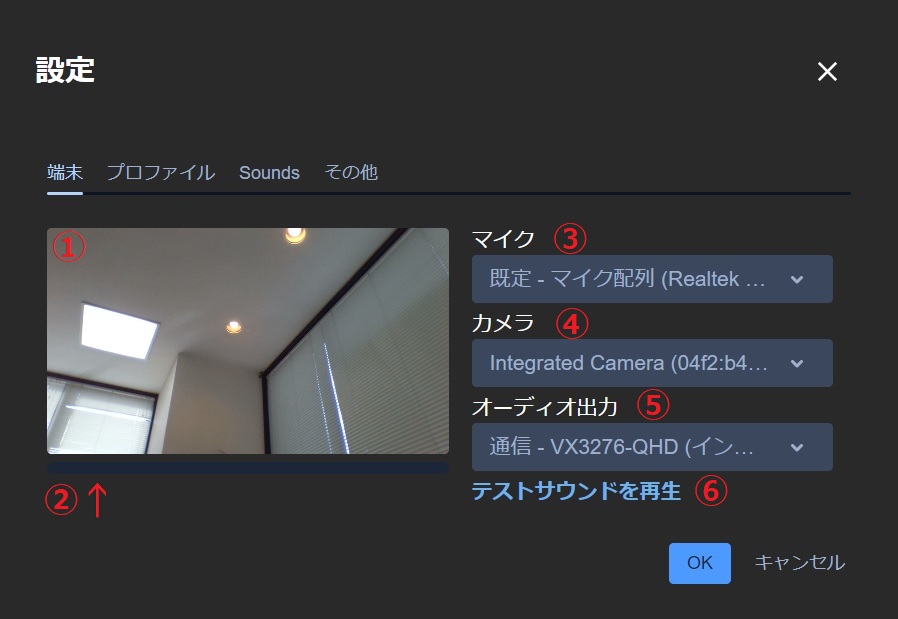
[Settings screen]
If the camera is working properly,①The image taken with the camera should be displayed. If there are multiple cameras, etc.④Please select.
If the microphone is working properly, you can speak (make sound)②A level gauge should appear around this area. If you have multiple microphones,③Please select.
If the speakers/audio output/earphones are working properly,⑥You should hear the sound by clicking [Play test sound]. In that case, it may be a good idea to adjust the volume. If you have multiple output devices,⑤Please select.
If neither of these works properly, please check the permissions and connection/operation of the device. It may also work by changing the browser you use.
|
2. If you want to try a little more Background change etc.
The first [title screen]②Enter a suitable name in [Meeting Name] and click [Start Meeting].
No one other than our staff can host a meeting, so they cannot actually start the meeting, but they can view the screens that precede it.
When you click Start Meeting, the following screen will be displayed.
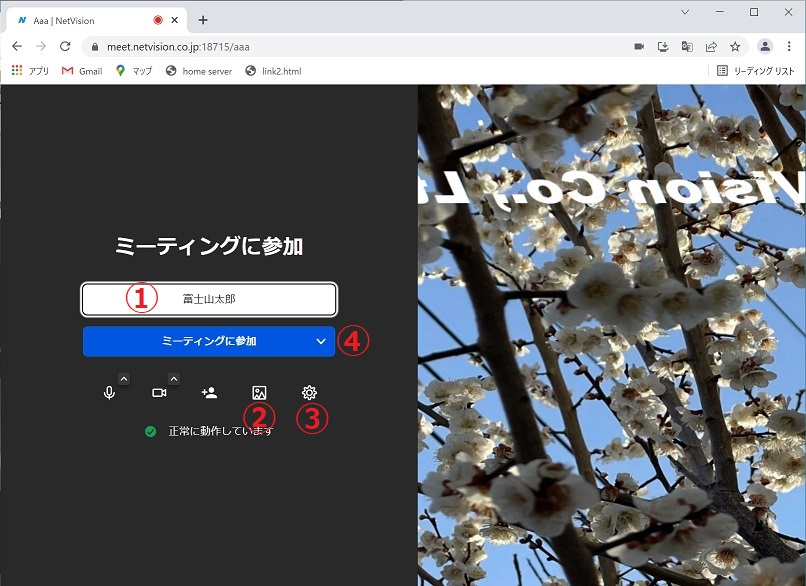
[Start screen]
If you click on the URL sent by email from us, you will be taken directly to this screen.
③The gear icon is the same as the gear icon on the title screen, and the [Settings screen] will be displayed.
②By changing the background, for example, if you do not want to display the room in your home, you can change the background to a different image (virtual background). You can also make the background blurry.
If you arrive at this [start screen] from the URL we sent you via email, please click here at the time we sent you the email.①Please enter your name in the④You can join the meeting by pressing [Join Meeting].
|
☆ jisti meet official link →
site
User guide
Trial ☆
Reference images may show Japanese interface labels. The accompanying instructions are provided in English.
|